
Quick answer · the 30-second read
Signing a document electronically takes a few minutes and requires no printing, scanning, or postage. The process is broadly the same whether you are signing a contract sent by email, a form on a website, or a document through a dedicated signing platform. This guide walks through the typical experience. The exact steps and screen layout will vary slightly depending on the platform or service being used, but the underlying process is the same.
A note on platforms
There are many e-signature platforms and services available. The steps below describe the process in general terms and are not specific to any single product. Button labels, menu names, and screen layouts will differ between platforms - but the overall flow is consistent. Signatures.com does not endorse or recommend any specific platform.The signing process: step by step
This is what typically happens when you are asked to sign a document electronically.
1 | You receive a notification You receive an email or a message telling you that a document is waiting for your signature. The message will usually come from the person or organisation that sent it, often with the name of the signing platform in the email address or footer. Check your spam folder if you are expecting a document and have not received anything. |
2 | Open the document Click the link or button in the notification. This opens the document in your browser or in the platform’s app. You do not normally need to create an account or install any software to sign. The document is shown on screen, ready to read. |
3 | Read the document Read the document before signing. You are not obliged to sign something you have not read or do not agree with. Most platforms let you scroll through the full document before the signing step is available. |
4 | Verify your identity if required Some platforms will ask you to confirm your identity before signing. This might involve entering a code sent to your mobile phone, confirming your email address, or - for higher-security transactions - uploading a photo of an ID document. Lower-stakes documents often skip this step entirely. The level of identity verification required depends on the document and the platform. |
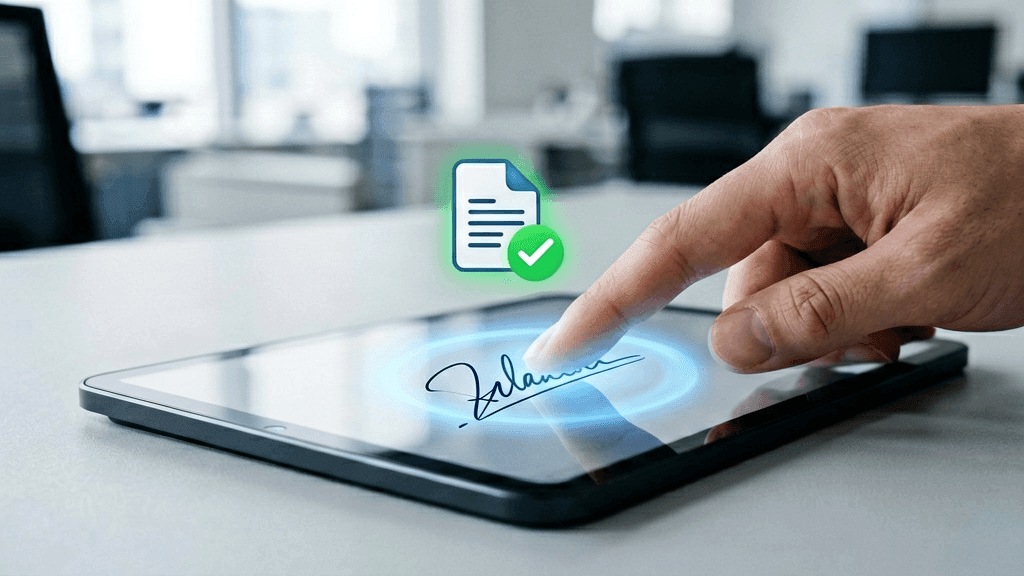
5 | Apply your signature The platform will prompt you to sign. This usually means clicking a button labelled something like ‘Sign here’ or ‘Add signature’. You will then choose how to create your signature: typing your name (the platform styles it automatically), drawing it with your mouse, finger, or stylus, or uploading an image of your handwritten signature. Choose whichever method you prefer - all are equally valid. |
6 | Place your signature on the document Once you have created your signature, you place it in the designated field. On most platforms this is already marked for you - a box or prompt showing where your signature goes. If there are multiple places to sign, for example, initials on each page, the platform will guide you through each one. |
7 | Confirm and submit When you have signed everywhere required, you confirm by clicking a button - usually labelled ‘Finish’, ‘Submit’, or ‘Complete signing’. At this point your signature is applied to the document. The platform may ask you to confirm that you understand you are signing electronically and that this is legally binding. |
8 | Receive your copy Once all parties have signed, you receive a copy of the completed document, usually by email as a PDF. This copy includes all signatures and - if the platform generates one - a certificate or audit trail confirming when each person signed and from which device. Keep this copy somewhere safe. If you do not receive a copy automatically, ask the sender or check the platform for a download option. |
If you are sending a document for others to sign
The steps above describe the experience of being asked to sign. If you are the one sending a document, the process from your side typically looks like this.
- Upload your document to the platform. This is usually a PDF or Word file.
- Add the names and email addresses of the people who need to sign.
- Mark where each person needs to sign, initial, or provide information.
- Send the document. Each signer receives a notification by email.
- Monitor the progress. Most platforms show you who has signed and who is still to sign.
- Receive the completed document once all parties have signed.
Most platforms also allow you to set a signing order. For example, person A must sign before person B is notified. You should also be able to set a deadline after which the signing link expires.
Common Questions
Do I need to create an account to sign?
Usually not. Most platforms allow you to sign a document as a guest by following the link in the email you receive. You may need to confirm your email address or enter a verification code, but creating a full account is typically optional for the person signing.
If you are sending documents regularly, you will need an account with a platform. Most offer a free tier for low volumes.
Is my signature legally binding?
Yes. An electronic signature applied through this process is legally valid for the vast majority of documents in the UK, US, and EU. The law does not require a handwritten signature for most commercial and consumer documents. What matters is that you intended to sign - and clicking through a signing process is a clear demonstration of that intent.
A small number of documents, such as wills in England and Wales, for example, still require a wet-ink signature. See What documents cannot be signed electronically? for a full list.
What if I make a mistake while signing?
Before you submit, you can usually clear your signature and start again. Look for a ‘Clear’, ‘Redo’, or ‘Edit’ option near the signature field. Once you have submitted, the process depends on the platform. Some platforms allow the sender to cancel and resend, others require a new document to be prepared.
If you have already submitted and realise you have signed something incorrectly or in error, contact the sender as soon as possible.
Can I sign on a mobile phone or tablet?
Yes. Most signing platforms work in a mobile browser without any app download needed. The experience is optimised for touchscreens. Drawing your signature with your finger is often easier on a phone than on a desktop. If the platform has an app, that will usually give the smoothest experience on mobile.
What happens if I do not sign in time?
If the sender has set a deadline, your signing link may expire and show as invalid. In that case, contact the sender and ask them to resend the document or extend the deadline. Most platforms allow the sender to do this without starting the process again from scratch.
How do I know the document has not been changed after I signed?
If the document was signed through a platform that uses advanced or digital signing technology, any change to the document after signing will automatically invalidate the signature. When you or anyone else opens the completed PDF, it will show whether the signatures are valid and whether the document is unchanged.
Adobe Acrobat Reader - which is free - verifies digital signatures automatically and displays the result clearly. A green tick means the signature is valid and the document is unchanged.


